

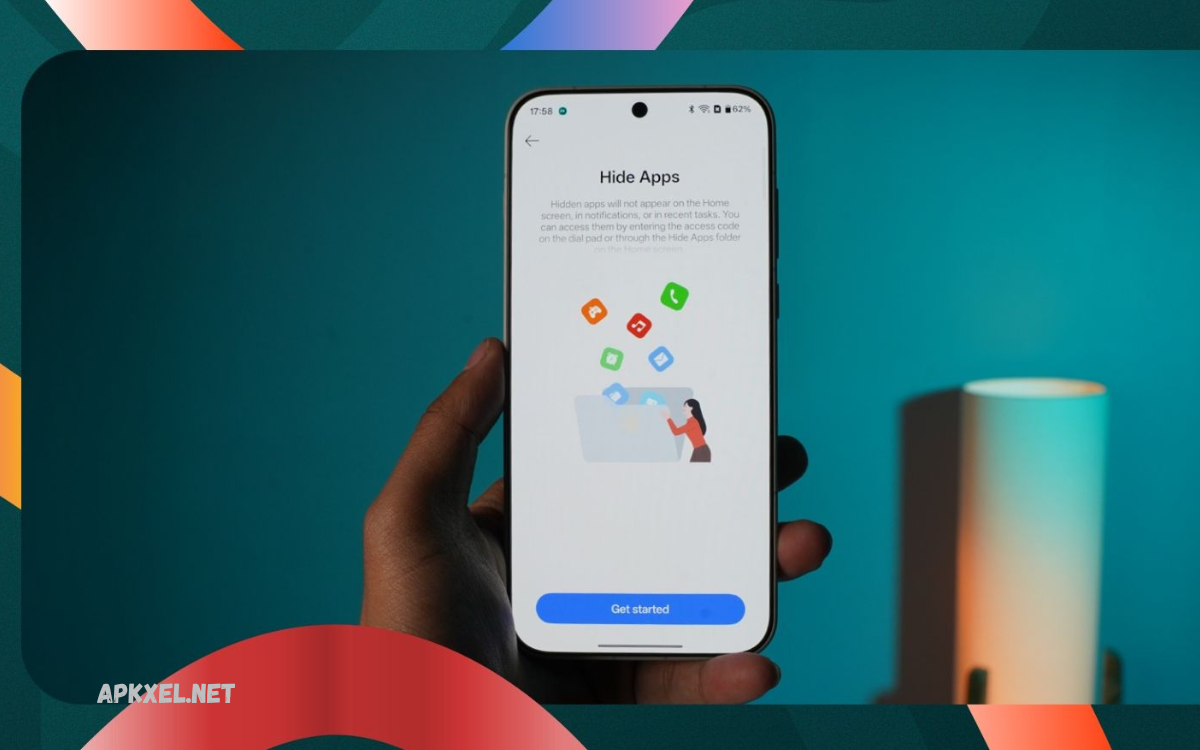
Smartphones have become an essential part of everyday life, storing personal information, financial data, photos, and sensitive files. However, not every app installed on your device is visible on the home screen or in the app drawer.
Android phone or an iPhone, knowing how to detect hidden apps is important for protecting your personal data. Hidden applications can consume storage, drain battery life, access private information, or run in the background without your knowledge.
What Is a Hidden Apps Finder?
A Hidden Apps Finder refers to any built-in feature or trusted security tool that identifies applications not immediately visible on your smartphone. These tools scan installed packages, system settings, application permissions, storage directories, and running processes to locate software that may not appear in the normal app list.
A Hidden Apps Finder helps users:
- Detect hidden applications
- Find disabled apps
- Identify suspicious software
- Monitor installed packages
- Improve device security
- Recover hidden applications
- Remove unwanted software
- Free storage space
- Enhance phone performance
Rather than relying solely on the home screen, a Hidden Apps Finder scans the entire operating system.
Why Applications Become Hidden?
Not every hidden application is dangerous. Many apps are hidden for convenience or privacy.
Common reasons include:
User Privacy
People hide banking apps, password managers, private photo vaults, and messaging applications to prevent unauthorized access.
Parental Control
Parents may hide educational or monitoring apps to prevent children from deleting them.
Manufacturer Features
Some smartphone brands allow users to hide applications using built-in launchers.
Examples include:
- Samsung Secure Folder
- OnePlus Hidden Space
- Xiaomi Hidden Apps
- Huawei PrivateSpace
Enterprise Devices
Companies often hide work-related applications on employee devices to prevent accidental modifications.
Malware
Cybercriminals frequently disguise malicious applications to avoid detection while collecting personal information.
Signs You May Have Hidden Applications
Although hidden apps remain out of sight, they often leave clues.
Watch for:
- Faster battery drain
- Increased mobile data usage
- Phone overheating
- Reduced performance
- Unusual notifications
- Unexpected advertisements
- Unknown background activity
- Storage filling quickly
- Strange permission requests
These symptoms may indicate concealed software running behind the scenes.
How Hidden Apps Affect Your Device
Some hidden apps are harmless, but suspicious applications can cause serious problems.
Potential risks include:
Privacy Violations
Malicious software may access:
- Contacts
- Photos
- Videos
- Messages
- Emails
- Banking apps
- Location history
Security Threats
Spyware and trojans can steal login credentials and financial information.
Performance Issues
Hidden apps consume:
- RAM
- CPU resources
- Battery power
- Mobile data
This reduces overall phone performance.
Storage Problems
Unused concealed applications occupy valuable storage without your knowledge.
How to Find Hidden Apps on Android
Android offers several methods for locating concealed applications.
Check the App Drawer
Open the app drawer.
Look for:
- Hidden Apps
- Manage Hidden Apps
- Home Screen Settings
Many Android launchers include hidden app options.
Open Settings
Navigate to:
Settings → Apps → See All Apps
This displays every installed application, including many hidden ones.
Review unfamiliar names carefully.
Search Installed Applications
Use the Settings search feature.
Type:
- Apps
- Installed Apps
- Package Manager
This often reveals software hidden from the launcher.
Check Device Administrator Apps
Go to:
Settings → Security → Device Admin Apps
Some malicious applications request administrator privileges to prevent removal.
Review Accessibility Services
Visit:
Settings → Accessibility
Spyware sometimes abuses accessibility permissions to monitor activity.
Disable unknown services immediately.
Inspect Installed Packages
Developer options and package managers can reveal applications invisible to ordinary users.
Only experienced users should modify package settings.
Read Also: Android Productivity Tools: The Complete Guide for Professionals to Work Smarter
How to Find Hidden Apps on iPhone
Apple limits hidden applications more than Android, but users should still inspect installed software.
Check App Library
Swipe left until the App Library appears.
Search for applications that may have been removed from the Home Screen.
Search Spotlight
Swipe down from the Home Screen.
Search by app name.
Hidden applications usually still appear in search results.
Review Installed Apps
Open:
Settings → General → iPhone Storage
This lists every installed application.
Review unfamiliar entries.
Check Screen Time Restrictions
Go to:
Settings → Screen Time → Content & Privacy Restrictions
Restrictions may hide applications.
Review App Permissions
Navigate to:
Settings → Privacy & Security
Review access granted to:
- Camera
- Microphone
- Photos
- Contacts
- Files
- Location
Unexpected permissions deserve attention.
Hidden Apps Finder Tools
Several trusted applications help detect concealed software.
Useful features include:
- Malware scanning
- Permission analysis
- Package detection
- Spyware identification
- Background process monitoring
- Security reports
Choose reputable developers with positive reviews and frequent updates.
Avoid unknown security apps, as fake antivirus software can pose additional risks.
How to Identify Suspicious Applications
Not every unfamiliar app is dangerous.
Review:
Application Name
Malware often uses confusing names like:
- Update Service
- System Manager
- Android Process
- Device Helper
Verify whether these belong to your phone manufacturer.
Permissions
Be cautious if a calculator requests:
- Camera
- Contacts
- SMS
- Microphone
- Location
Permissions should match the app’s purpose.
Battery Usage
Go to battery settings.
Look for applications consuming excessive power.
Data Usage
Review mobile data statistics.
Unknown apps that use large amounts of data warrant investigation.
Storage Consumption
Large hidden applications may occupy significant storage space.
Delete unused software whenever possible.
Removing Hidden Applications
If you discover suspicious software:
- Back up important files.
- Disconnect from public Wi-Fi.
- Remove administrator permissions.
- Uninstall the application.
- Restart the device.
- Run a trusted security scan.
- Update the operating system.
- Change important passwords if necessary.
If removal fails, factory resetting the device may become necessary after backing up your data.
Prevent Hidden Apps from Returning
Good security habits reduce future risks.
Best practices include:
- Download apps only from official stores.
- Keep Android or iOS updated.
- Enable Google Play Protect.
- Enable automatic security updates.
- Install trusted antivirus software if appropriate.
- Avoid unknown APK files.
- Never root or jailbreak devices unless necessary.
- Review installed apps monthly.
- Delete unused software.
- Monitor permissions regularly.
Common Types of Hidden Applications
Hidden software appears in different forms.
Examples include:
Spyware
Secretly monitors calls, messages, and locations.
Parental Monitoring Apps
Used by parents to supervise children’s devices.
Employee Monitoring Software
Installed on corporate phones.
Vault Applications
Hide photos, videos, and private files.
System Applications
Pre-installed manufacturer software is hidden from normal users.
Malware
Designed to steal information or display advertisements.
Benefits of Regular Device Scans
Routine scanning provides multiple advantages.
Benefits include:
- Improved privacy
- Better performance
- Increased battery life
- More available storage
- Faster system speed
- Stronger security
- Reduced malware risk
- Cleaner application list
- Greater peace of mind
Checking installed apps every few weeks helps maintain device health.
Common Myths About Hidden Apps
Myth 1: Hidden Apps Are Always Dangerous
False.
Many hidden applications are legitimate system tools or privacy features.
Myth 2: Factory Reset Is Always Required
False.
Most hidden applications can be safely removed without resetting the device.
Myth 3: Only Android Has Hidden Apps
False.
Although Android offers more customization, iPhones can also have apps removed from the Home Screen or restricted through settings.
Myth 4: Antivirus Detects Everything
False.
No security tool guarantees 100% detection.
Combining regular updates, permission reviews, and safe downloading habits provides stronger protection.
Best Practices for Mobile Security
To keep your device secure:
- Update apps regularly.
- Enable two-factor authentication.
- Use a strong screen lock.
- Review installed applications monthly.
- Remove unused apps.
- Check permissions frequently.
- Avoid suspicious downloads.
- Use secure Wi-Fi networks.
- Backup important files.
- Monitor unusual device behavior.
Small maintenance habits significantly improve long-term security.
Frequently Asked Questions (FAQs)
What is a Hidden Apps Finder?
A Hidden Apps Finder is a feature or security tool that helps locate concealed applications installed on a smartphone.
Are hidden apps always harmful?
No. Many hidden apps are legitimate privacy, parental control, or system applications.
Can hidden apps steal personal information?
Malicious hidden apps can access contacts, photos, messages, and other sensitive data if granted permissions.
How do I check for hidden apps on Android?
Open Settings > Apps, review installed applications, check permissions, and inspect hidden app settings.
Can I find hidden apps on an iPhone?
Yes. Use App Library, Spotlight Search, iPhone Storage, and Privacy settings to review installed apps.
Do hidden apps slow down my phone?
Some concealed applications consume memory, battery, processing power, and storage, affecting performance.
Is it safe to install a Hidden Apps Finder?
Yes, provided you choose a trusted app from the official Google Play Store or Apple App Store.
Should I delete every hidden app?
No. Remove only applications you recognize as unnecessary or suspicious. Some hidden apps are essential system components.
Can malware hide itself?
Yes. Certain malware disguises its icon, changes its name, or runs silently in the background to avoid detection.
How often should I scan my phone?
Perform a security review at least once a month and immediately if you notice unusual behavior, excessive battery drain, or unexpected data usage.
Conclusion
Understanding Hidden Apps Finder: How to Detect Concealed Applications on Your Device is essential for protecting your privacy, improving device performance, and maintaining strong mobile security. While many hidden applications are harmless and intentionally concealed for convenience or organizational purposes, others may pose genuine risks if left undetected.
