

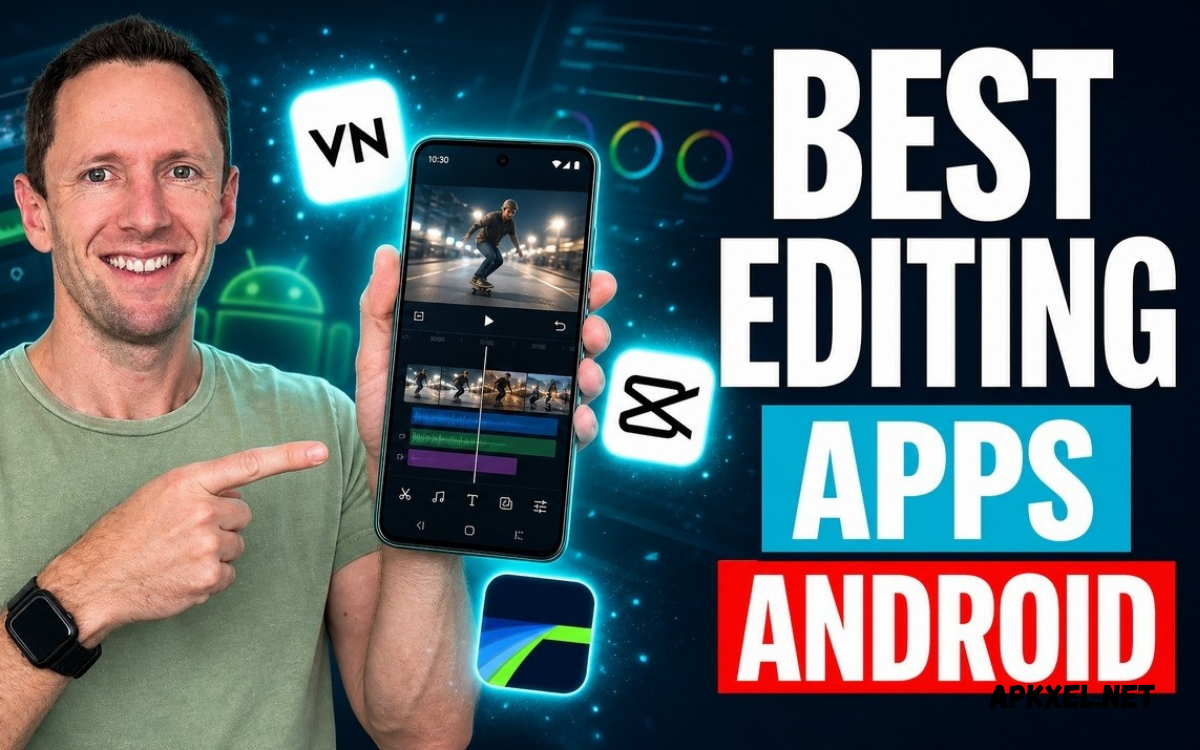
The Best Video Editing Apps for Android help creators transform ordinary clips into engaging videos through powerful editing tools, creative effects, smooth transitions, and professional features.
Video editing no longer requires an expensive computer or complicated desktop software for every project. Modern Android editing apps offer convenient timelines, ready-made templates, visual effects, audio controls, and high-resolution export options.
Why Android Video Editing Apps Are Popular
Android video editing apps provide flexibility for people who create content regularly or occasionally. Users can record footage, edit scenes, add background music, and publish finished videos without transferring files between multiple devices.
Another reason for their popularity is the variety of available features. Some apps focus on quick edits and automated templates, while others offer multilayer timelines, keyframe animation, chroma key effects, and advanced color correction.
CapCut for Creative Video Editing
CapCut is a widely recognized video editing application associated with short-form content, social media videos, and creative visual effects. Its editing tools commonly include clip trimming, transitions, text overlays, filters, speed controls, and audio editing. Depending on the current version and regional availability, users may also find automatic captions, background removal, templates, and AI-assisted features. These options make CapCut useful for creators who want engaging videos without learning a complicated editing workflow.
CapCut works particularly well for short videos, promotional clips, tutorials, and entertaining social media content. Creators can arrange footage, synchronize clips with music, and experiment with visual effects to develop a consistent style. However, some features may require an account, an internet connection, or a paid subscription. Availability can also vary by country and app version, so users should check the official Google Play listing before relying on a particular tool.
VN Video Editor for Flexible Editing
VN Video Editor offers a practical editing experience for creators who want greater timeline control without an overly complicated interface. Its feature set may include clip trimming, multilayer editing, transitions, filters, music tracks, text overlays, speed adjustments, and keyframe animation. These tools allow users to combine multiple scenes, control visual timing, and build more structured projects. Beginners can start with simple edits before exploring advanced options as their confidence grows.
The application can suit vloggers, students, gaming creators, and people producing educational or promotional videos. A timeline-based workflow makes it easier to arrange footage precisely and adjust the relationship between video and audio. Export settings and feature availability may depend on the current version, so users should review the application details before beginning a demanding project. VN is worth considering for anyone seeking a balance between creative freedom and accessible mobile editing.
KineMaster for Advanced Mobile Projects
KineMaster provides a feature-rich editing environment for Android users who want detailed control over video and audio layers. Depending on the version and subscription, available tools may include multiple media layers, transitions, keyframe animation, blending modes, chroma key, voice recording, and color adjustments. These capabilities help creators develop more elaborate projects than simple clip-combination edits. Its timeline interface also supports precise placement of visual elements and sound.
KineMaster can be useful for YouTube videos, gaming montages, presentations, tutorials, and creative short films. Users can combine footage with images, text, music, and visual effects to create a more organized final product. Some export options and premium assets may be restricted to paid plans, while branding or watermark conditions can differ by subscription. Checking current pricing and export limitations before committing to a project helps avoid unexpected restrictions.
InShot for Simple and Effective Editing
InShot is designed for users who want an accessible way to edit videos and images on an Android smartphone. Common features include trimming, splitting, merging clips, adding music, inserting text, applying filters, and adjusting video dimensions. Its straightforward interface helps beginners complete basic editing tasks without navigating an extensive professional timeline. The application is particularly convenient for creators preparing short clips for social media platforms.
InShot also offers tools for resizing footage to suit different publishing formats. Users can adjust backgrounds, add stickers, modify playback speed, and create visually consistent videos for personal or promotional purposes. Some advanced effects, assets, and watermark-removal options may require a purchase or subscription. For people who prioritize speed and simplicity, InShot can be a useful choice for everyday video editing on Android.
PowerDirector for Professional-Style Editing
PowerDirector brings a broad selection of editing tools to mobile creators who want more control over their projects. Depending on the version, its features may include timeline editing, transitions, titles, stabilization, speed effects, color adjustments, and AI-assisted enhancements. The application supports workflows that range from quick social media edits to more structured video productions. Its range of controls can help users develop editing skills while working on increasingly complex projects.
Creators producing tutorials, travel videos, presentations, and YouTube content may appreciate its combination of convenience and advanced features. Before choosing PowerDirector, users should check device compatibility, available export resolutions, subscription requirements, and the features included in the free version. Complex projects can also demand considerable processing power and storage. A compatible Android device and an organized editing workflow can help maintain a smoother experience.
Adobe Premiere on Mobile
Adobe offers mobile video editing options within its broader creative software ecosystem, although the exact applications, features, and availability can change over time. Adobe Premiere on supported mobile platforms may provide tools for arranging clips, adding titles, adjusting audio, applying visual treatments, and preparing videos for online publishing. Users interested in Adobe products should verify the current Android availability and official app details rather than assuming every desktop feature exists on smartphones.
For creators already familiar with Adobe workflows, a compatible mobile application may provide a convenient starting point for editing footage away from a computer. However, advanced desktop capabilities, project compatibility, cloud services, and subscription benefits may differ between products. Android users should confirm that the specific Adobe video editor they want is officially available for their device and region. Comparing current functionality against personal editing needs helps prevent confusion between mobile and desktop software.
YouCut for Lightweight Video Editing
YouCut is an approachable option for users who want essential editing tools without an unnecessarily complicated workflow. Depending on the current release, its features may include trimming, splitting, merging clips, adjusting playback speed, adding music, inserting text, and changing video dimensions. These controls make it useful for assembling everyday footage into a coherent video. Beginners can focus on storytelling and timing instead of learning a large collection of advanced editing features.
The application may suit family videos, simple tutorials, short social media posts, and personal projects. A relatively straightforward workflow can reduce the time required to complete routine edits on a smartphone. However, the available effects, advertisements, watermark policies, and export settings should be checked in the current version. Users seeking extensive multilayer editing or specialized visual effects may prefer a more advanced alternative.
Filmora for Android Video Creators
Filmora is known for accessible video editing tools that support creative effects and structured editing workflows. Mobile features can include transitions, filters, titles, music, stickers, speed controls, and templates, depending on the application version. These tools help creators produce polished videos without manually building every visual element. The interface is designed to make common editing tasks approachable for people who are still developing their production skills.
Filmora can be considered for lifestyle videos, product showcases, tutorials, and social media content. Templates and ready-made effects may accelerate production, while manual controls provide room for individual creative decisions. Some features, assets, or export options may require a paid plan, and branding restrictions can vary. Reviewing the current Android listing and subscription details helps determine whether Filmora offers the right value for a particular project.
Canva for Videos and Social Media Content
Canva provides a design-focused approach to video creation, combining visual layouts with accessible editing features. Depending on the mobile version and plan, users may work with video clips, text animations, graphic elements, transitions, audio, and ready-made templates. These capabilities are useful when a video needs branded titles, promotional messages, attractive layouts, or consistent visual identity. Canva can be particularly helpful for creators who regularly produce both graphics and videos.
The application is well suited to presentations, announcements, educational clips, marketing content, and social media posts. Templates can simplify the design process, while customizable colors, fonts, and graphics help maintain a recognizable style. However, Canva is not necessarily the best fit for every advanced editing task, particularly projects requiring detailed cinematic color grading or complex timeline manipulation. Users should select it when visual design and efficient content creation are important priorities.
Alight Motion for Motion Graphics
Alight Motion focuses on animation, motion graphics, and visually expressive content. Its tools may include keyframe animation, vector graphics, layered compositions, visual effects, and detailed control over movement. These capabilities make it attractive to creators who want animated text, dynamic transitions, graphic sequences, or stylized video edits. Learning the interface may require additional practice, especially for users unfamiliar with animation principles.
The application can support music edits, animated introductions, creative montages, and short visual sequences. Keyframes allow users to control how an object changes position, size, rotation, or other properties over time. However, multilayer compositions and complex effects can increase processing demands. Users should also review subscription terms and export restrictions before building a project around premium features.
Google Photos for Basic Video Editing
Google Photos includes convenient video-editing tools in supported versions, making it useful for quick adjustments to personal footage. Available controls may include trimming, cropping, stabilization, visual adjustments, and selected creative effects, depending on the device and software version. Its familiar interface makes basic edits approachable for people who do not need a dedicated, feature-heavy editing application.
Google Photos is especially useful when the main goal is to prepare personal clips, improve framing, or make quick changes before sharing a video. It may not provide the extensive timelines, advanced animation, or complex layering available in specialized editors. Users who need detailed control over music, captions, transitions, and multiple tracks should consider a dedicated video editing app. For straightforward adjustments, however, an existing photo library can offer a convenient starting point.
How to Choose the Best Video Editing Apps for Android
Choosing the right editor begins with identifying the type of videos you want to create. Short social media clips often benefit from templates, automatic captions, quick transitions, and convenient resizing tools. YouTube videos may require more precise timeline editing, voice-over recording, audio balancing, and title customization. Animation projects and cinematic edits can demand keyframes, chroma key, multilayer support, and detailed color controls.
Device compatibility, storage capacity, and budget are also important considerations. Some applications run comfortably on modest devices, while complex projects with high-resolution footage and numerous effects may perform better on powerful smartphones. Check whether the free version includes the features you need, whether a watermark appears on exports, and whether an account or internet connection is required. Testing an app with a short sample project can reveal whether its interface and performance suit your workflow.
Essential Features to Look for in Video Editing Apps
A useful video editor should provide reliable trimming, splitting, merging, and timeline controls. These basic functions help remove unwanted footage, improve pacing, and arrange scenes into a clear sequence. Audio tools are equally important because dialogue, background music, and sound effects influence the quality of the final video. Text overlays, captions, transitions, and aspect-ratio controls can further improve presentation across different platforms.
More advanced features become valuable as editing requirements grow. Keyframe animation offers precise control over movement, chroma key supports background replacement, and color correction helps create a consistent visual appearance. Stabilization can improve supported footage, while high-resolution exports preserve detail when the source material allows it. Not every creator needs every feature, so the best application is the one that provides dependable tools for the projects being produced.
Free vs Paid Android Video Editing Apps
Free video editing apps can provide excellent value for beginners and casual creators. Many include essential trimming, transitions, filters, text overlays, and music controls without an upfront payment. These features are often sufficient for school projects, personal videos, basic tutorials, and simple social media content. A free editor can also help users learn fundamental editing techniques before deciding whether advanced tools are necessary.
Paid versions may offer additional effects, premium templates, expanded AI tools, extra export options, or fewer restrictions. However, a subscription does not automatically make an application the best choice for every user. Before purchasing, examine the included features, renewal terms, watermark policy, and cancellation conditions. Comparing the actual benefits against your editing needs helps ensure that you pay only for capabilities that provide meaningful value.
Tips for Creating Better Videos on Android
Good editing begins with organized footage and a clear idea of the finished video. Review your clips before editing, remove unnecessary scenes, and arrange the remaining material into a logical sequence. Keep transitions purposeful rather than adding effects to every cut.
Audio and export settings also influence the finished result. Keep speech understandable, balance background music carefully, and avoid abrupt changes in volume between scenes.
Read Also: Android App Updates: Latest Features, Improvements, and New Releases
Common Mistakes to Avoid During Video Editing
One common mistake is using too many transitions, filters, stickers, and animated elements in a single video. Excessive effects can distract viewers from the message and make the finished project feel inconsistent. Another issue is poor audio balance, especially when background music competes with spoken explanations. A clean editing style, appropriate sound levels, and consistent visual choices often produce a more professional result.
Exporting without checking the final video can also create avoidable problems. Captions may contain mistakes, text may extend beyond the visible frame, and some clips may have unexpected black bars or audio gaps. Watch the exported file before publishing, particularly when preparing important tutorials, promotional videos, or client projects. Confirm the resolution, aspect ratio, sound quality, and watermark conditions to ensure that the video meets your expectations.
Best Video Editing Apps for Android for YouTube
YouTube creators often need an editor that supports longer timelines, accurate cuts, title sequences, background music, and voice-over narration. PowerDirector, KineMaster, and VN Video Editor are worth comparing for these tasks, depending on the current features available on your device. Their editing environments can help organize multiple scenes and refine the flow of tutorials, reviews, gaming videos, and travel content.
The ideal choice depends on video length, device performance, and production style. Creators making simple commentary videos may prefer an uncomplicated workflow, while channels featuring layered graphics or detailed effects may benefit from more advanced controls. Before selecting an app, test how easily it handles your usual footage and verify its export settings. Consistent production quality and clear storytelling are more important than choosing an editor solely because it has the largest feature list.
Best Video Editing Apps for Android for Reels and Shorts
Short-form videos require quick pacing, clear framing, readable captions, and engaging opening scenes. CapCut, InShot, Canva, and similar editors may be suitable for these projects because they emphasize convenient editing, visual effects, templates, or social media layouts. Depending on current availability, automatic captioning and resizing tools can reduce repetitive work and help creators adapt content to different platforms.
A strong short video communicates its main idea quickly and avoids unnecessary delays. Use captions when they improve accessibility, keep important text away from interface overlays, and ensure that music does not overpower speech. Select a vertical format when required by the publishing platform, and preview the finished video on a phone-sized screen. These small adjustments can improve readability and make the content easier to watch.
Privacy and Security When Using Editing Apps
Video editing applications may request access to photos, videos, audio recordings, storage, or other device features. Grant only the permissions necessary for the tasks you want to perform, and review privacy information before uploading personal footage to online services. Cloud processing, AI tools, and shared templates may handle data differently, so understanding the application’s policies is important when working with private recordings.
Creators should also use official app stores or verified developer websites when installing editing software. Avoid modified application packages from unknown sources because they may introduce security risks or unreliable features. Review subscriptions carefully, keep applications updated, and protect accounts associated with cloud storage or creative projects. These habits help maintain a safer editing workflow while preserving access to important files.
Frequently Asked Questions
Which is the best video editing app for Android?
The best application depends on your requirements. CapCut may suit short-form social content, VN Video Editor can offer flexible timeline editing, KineMaster supports multilayer projects, and InShot provides a straightforward experience for everyday edits. Compare current features, availability, and export restrictions before choosing an app.
Which Android video editing app is suitable for beginners?
InShot, YouCut, and Google Photos can be approachable starting points for basic editing tasks. Their available tools vary, but simple trimming, cropping, music controls, and visual adjustments can help beginners learn editing fundamentals. More advanced applications become easier to use with regular practice.
Are there free video editing apps for Android?
Yes, several Android video editors offer free versions with useful editing features. However, premium effects, templates, watermark removal, or certain export options may require payment. Always check the current terms and feature restrictions before beginning a project.
Which app is useful for YouTube video editing?
VN Video Editor, KineMaster, and PowerDirector are options worth comparing for YouTube projects. Look for timeline precision, audio controls, title tools, appropriate export settings, and support for your device. The most suitable application is the one that handles your video format and editing requirements reliably.
Can Android apps export high-quality videos?
Many video editors support high-resolution exports, although available resolutions and frame rates vary by application, subscription, and device. The source footage also affects the final quality. Review export settings and preview the finished video before publishing.
Do video editing apps add watermarks?
Some applications place watermarks on exports from free versions, while others provide watermark-free exports or charge for removal. Policies can change with app updates and subscription plans. Check the current export conditions before selecting an editor for professional or commercial work.
Conclusion
The Best Video Editing Apps for Android offer a wide range of options for beginners, social media creators, vloggers, students, and experienced editors.
The right choice depends on personal goals, device compatibility, editing experience, and budget. Start by identifying the features needed for your usual projects, then test a suitable application using a short clip.
