

Installing APK files on Android devices offers a flexible way to access applications outside the Google Play Store. APK, short for Android Package Kit, represents the file format used to distribute and install apps on Android. Understanding how to install APK files allows users to explore apps unavailable in certain regions, test beta versions before official release, and install apps that may not meet Play Store guidelines.
While Google Play provides a convenient and secure platform for app installation, it limits availability based on location, device compatibility, or app type. APK files overcome these limitations, giving users direct control over app installation.
Understanding APK Files
APK files function as installation packages for Android applications. Unlike apps downloaded from Google Play, APK files allow users to install apps directly. This method becomes necessary when apps are region-restricted, unavailable on Play Store, or provided as beta versions. Learning how to install APK involves understanding Android security settings, file management, and installation protocols.
APK files contain:
- Manifest file: Defines app permissions, components, and metadata.
- Resources: Images, layouts, and other assets required by the app.
- DEX files: Compiled bytecode for Android runtime.
- Certificates: Digital signatures verifying app authenticity.
Ensuring the APK source is legitimate prevents malware infections. Trusted websites, developer releases, and official app mirrors provide reliable APK files.
Preparing Android Device for APK Installation
Installing APK files requires enabling specific settings to allow installation from sources outside Play Store. Android restricts such installations by default for security purposes.
Steps to Enable Installation from Unknown Sources
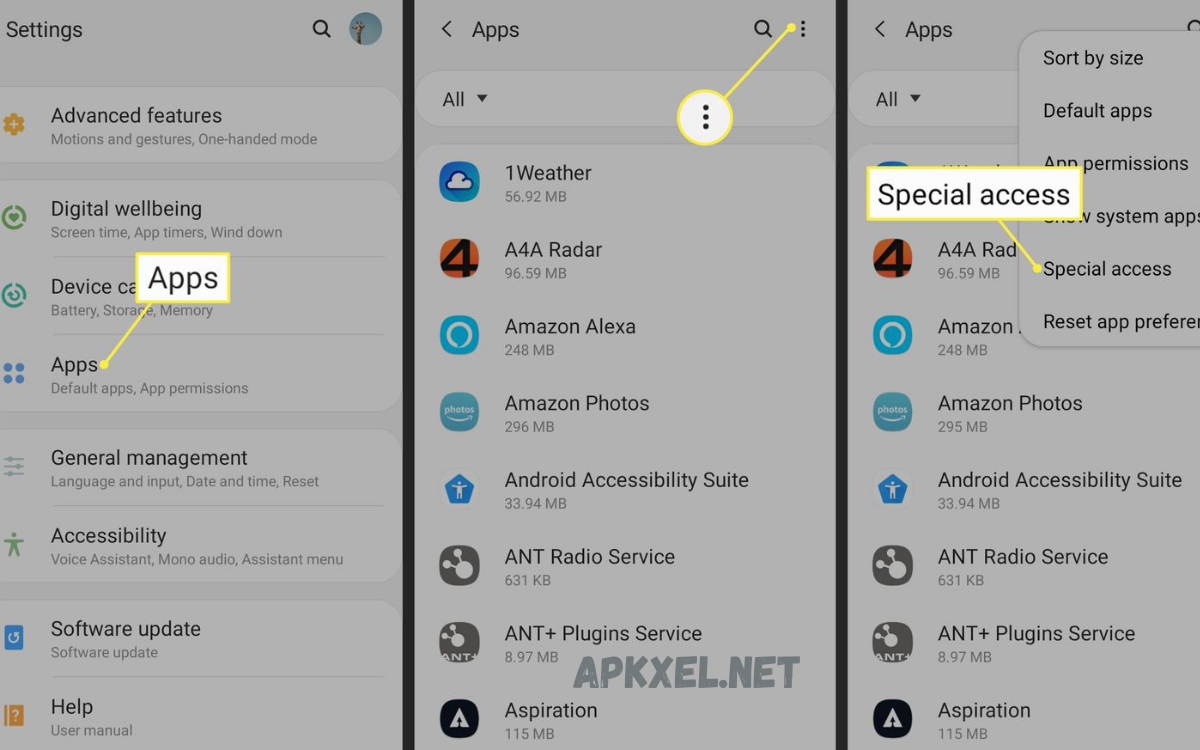
Android 8.0 (Oreo) and Later:
- Open Settings.
- Navigate to Apps & notifications → Special app access → Install unknown apps.
- Select the app intended to open the APK (for example, Chrome or file manager).
- Toggle Allow from this source to ON.
Android 7.0 (Nougat) and Earlier:
- Open Settings → Security.
- Enable Unknown sources to allow APK installation.
After enabling these options, devices accept APK files for installation, granting control over apps not distributed through official channels.
Downloading APK Files Safely
Downloading APK files requires caution. Malicious APK files may compromise device security, personal data, or system integrity. Follow these guidelines:
- Use trusted sources such as official developer websites or recognized APK repositories.
- Verify digital signatures when possible.
- Avoid downloading APK files from unknown websites or forums.
- Check app permissions to prevent unnecessary access to device data.
Saving APK files in accessible directories, such as Downloads, ensures easy navigation during installation.
Read Also: Best Video Editing Apps for Instagram 2026
Step-by-Step Process to Install APK
The actual installation process involves locating the APK, granting permissions, and completing the installation.
Step 1: Locate APK File
After downloading, open a file manager app. Navigate to the folder containing the APK file, usually Downloads.
Step 2: Initiate Installation
- Tap the APK file.
- A prompt displays the permissions required by the app.
- Review requested permissions to ensure legitimacy.
Step 3: Install the App
- Confirm installation by tapping Install.
- Wait for the device to complete the installation. Installation duration depends on file size and device performance.
Step 4: Open Installed App
- Once installed, tap Open to launch the app.
- Alternatively, find the app in the app drawer.
Step 5: Disable Unknown Sources
For security, disabling the Install unknown apps option after installation is recommended. This prevents unintended APK installations in the future.
Advanced Methods for Installing APK
Advanced users may prefer installing APK files using external tools or PCs. This approach provides additional control, especially when devices restrict direct downloads.
Using ADB (Android Debug Bridge)
ADB allows APK installation from a PC. Steps include:
- Enable Developer options on Android.
- Enable USB debugging.
- Connect the device to PC via USB.
- Open terminal or command prompt and navigate to ADB folder.
- Execute the command:
adb install path/to/filename.apk - Confirm installation on the device.
ADB installation bypasses certain device restrictions and is effective for troubleshooting failed APK installations.
Installing Split APKs
Some apps require multiple APK files to function correctly. Tools like Split APKs Installer (SAI) facilitate installation of multiple APK components simultaneously, ensuring complete functionality.
Troubleshooting APK Installation Issues
Even experienced users may encounter issues while installing APK files. Common problems and solutions include:
- Parsing Error:
- Cause: Corrupted APK or incompatible Android version.
- Solution: Re-download APK from a trusted source and check device compatibility.
- Installation Blocked:
- Cause: Security settings prevent unknown source installation.
- Solution: Enable Install unknown apps or Unknown sources in settings.
- Insufficient Storage:
- Cause: Device lacks required memory.
- Solution: Clear storage or uninstall unused apps to free space.
- App Not Compatible:
- Cause: APK designed for a different Android version.
- Solution: Verify required Android version before installation.
Security Precautions for APK Installation
Installing APK files carries inherent risks. Following security guidelines minimizes potential threats:
- Verify Source: Only download APK files from trusted developers or repositories.
- Scan for Malware: Use antivirus apps to scan APK before installation.
- Limit Permissions: Avoid granting excessive permissions to unverified apps.
- Regular Updates: Sideloaded apps may not auto-update. Monitor developer websites for updates.
Implementing these precautions ensures safe installation and continued device security.
Benefits of Installing APK
- Access apps unavailable in the region or Play Store.
- Install beta versions before official release.
- Avoid app store restrictions and limitations.
- Customize app experience by installing modified or optimized versions.
Despite these benefits, maintaining security awareness remains critical.
Frequently Asked Questions
What is an APK file?
An APK (Android Package Kit) file is the standard format for Android applications. It contains all app components, including code, resources, and metadata, allowing manual installation on Android devices.
Is it safe to install APK files?
APK files from trusted sources are generally safe. Always verify the source, check permissions, and scan files for malware before installation. Avoid unknown websites to reduce security risks.
How do I enable APK installation on my Android device?
For Android 8.0 and above, go to Settings → Apps & notifications → Special app access → Install unknown apps, then allow the source app (e.g., Chrome) to install APKs. For Android 7.0 and earlier, enable Unknown sources in Settings → Security.
Can I install APK files without Google Play Store?
Yes. APK files allow manual installation, bypassing the Play Store. This is useful for apps not available in certain regions or beta versions not yet released officially.
Why does my APK fail to install?
Common reasons include corrupted APK files, incompatible Android versions, insufficient storage, or security settings blocking unknown sources. Check these factors to resolve installation issues.
How do I update apps installed via APK?
Sideloaded apps do not update automatically. Visit the official developer site or trusted APK repository to download the latest version and install it manually.
Conclusion
Learning how to install APK files provides Android users with enhanced flexibility, access, and control. Following the outlined steps ensures safe, efficient, and successful installation while maintaining device security. Users can download, manage, and install apps with confidence, leveraging official and trusted sources. Mastering APK installation empowers users to explore applications beyond conventional limitations while safeguarding devices from potential risks.
